




Use Copilot Chat in Microsoft 365 apps
.png)


.avif)

Use Copilot Chat in Microsoft 365 apps
Microsoft 365 Copilot Chat is a free, AI-powered assistant available to all Microsoft 365 commercial users. It’s built into the Microsoft 365 ecosystem and offers enterprise-grade data protection, meaning your prompts and responses stay within your organisation’s security boundary.
This guide covers what Copilot Chat is, where to find it, and how to use it across Microsoft 365 apps.
What Is Copilot Chat?
Copilot Chat (formerly known as Microsoft Copilot) is the free tier of Microsoft’s AI assistant. It’s available to anyone with a Microsoft 365 commercial licence and provides:
• AI-powered chat grounded in web data
• Enterprise data protection (your data is not used to train Microsoft’s AI models)
• Access within Microsoft 365 apps including Teams, Outlook, and the Microsoft 365 app
It’s important to note that Copilot Chat does not have access to your organisation’s files, emails, or calendar data. That capability requires a full Microsoft 365 Copilot licence (£25/user/month). Copilot Chat uses web-grounded data only.
Where to Find Copilot Chat
Copilot Chat is available in several locations across Microsoft 365:
1. Microsoft 365 App (m365.cloud.microsoft)
The main hub for Copilot Chat. You can access it directly from the Microsoft 365 app in your browser or desktop. Look for the Copilot icon in the left-hand navigation.
2. Microsoft Teams
Copilot Chat is being pinned to the Teams sidebar. You can open it as a standalone chat within Teams and use it alongside your regular conversations.
3. Outlook (Web and Desktop)
Copilot Chat appears in Outlook as an assistant that can help with drafting, summarising, and general queries. Note: the free version helps with general tasks; it doesn’t read your emails unless you have the full Copilot licence.
4. Microsoft Edge
Copilot is built into the Edge browser sidebar, available for quick queries while browsing.
What Can Copilot Chat Do?
Here are practical examples of what Copilot Chat can help with using its free, web-grounded capabilities:
General Research and Information
• “What are the key differences between Windows 10 and Windows 11 for business users?”
• “Summarise the latest UK government guidance on data protection for small businesses.”
• “What is Cyber Essentials and how does certification work?”
Drafting Content
• “Draft a professional email to a client explaining a service outage and expected resolution time.”
• “Write a LinkedIn post announcing our company’s new office opening.”
• “Create a template for a monthly IT report covering tickets resolved, response times, and open issues.”
Planning and Strategy
• “Help me create an agenda for a quarterly business review meeting.”
• “What should I include in an IT disaster recovery plan?”
• “Suggest a structure for an employee onboarding checklist.”
Technical Help
• “How do I set up conditional access policies in Microsoft Entra ID?”
• “Explain the difference between Microsoft 365 Business Standard and Business Premium.”
• “What PowerShell command do I use to check mailbox sizes in Exchange Online?”
Creative Tasks
• “Generate 5 subject line options for a marketing email about our new managed print service.”
• “Rewrite this paragraph in a more professional tone.”
• “Create a pros and cons table comparing on-premise vs cloud-hosted phone systems.”
How to Use Copilot Chat Effectively
Getting the most out of Copilot Chat comes down to how you prompt it. Here are some tips:
1. Be Specific
Instead of: “Help me with an email.”
Try: “Draft a polite email to a supplier requesting a revised quote for 50 laptops, mentioning our budget constraint of £600 per unit.”
2. Give Context
Instead of: “Write a report.”
Try: “Write a monthly IT support report for January 2025. Include sections for tickets resolved, average response time, top issues, and recommendations for improvement.”
3. Ask for Formats
• “Present this as a bullet point list.”
• “Create a table comparing these three options.”
• “Summarise this in three sentences.”
4. Iterate
Copilot Chat works best as a conversation. If the first response isn’t quite right, refine your request:
• “Make it shorter.”
• “Add more detail to the security section.”
• “Change the tone to be more formal.”
Copilot Chat vs. Full Microsoft 365 Copilot
It’s important to understand the difference:
Copilot Chat (Free):
• Available to all Microsoft 365 commercial users
• Web-grounded responses only
• Enterprise data protection
• Cannot access your files, emails, or calendar
• Works as a general-purpose AI assistant
Microsoft 365 Copilot (£25/user/month):
• Everything in Copilot Chat, plus:
• Access to your Microsoft 365 data (SharePoint, OneDrive, Outlook, Teams)
• AI embedded directly in Word, Excel, PowerPoint, Outlook, and Teams
• Meeting transcription and recap
• Document drafting from existing files
• Data analysis in Excel
• Presentation creation from Word documents
For many users, Copilot Chat is a great starting point. It demonstrates the value of AI assistance without any additional cost. For teams that need deeper integration with their work data, the full Copilot licence unlocks significantly more capability.
Security and Data Protection
Microsoft has designed Copilot Chat with enterprise security in mind:
• Your prompts and responses are not used to train AI models.
• Data stays within your Microsoft 365 tenant boundary.
• Standard Microsoft 365 compliance and security policies apply.
• Admin controls are available to manage Copilot access across your organisation.
This is a key difference from consumer AI tools like the free version of ChatGPT, where data handling and training policies are less clear for business use.
Getting Started
If your organisation uses Microsoft 365, your team likely already has access to Copilot Chat. Here’s how to get started:
- Check access: Visit m365.cloud.microsoft and look for the Copilot icon.
- Try a prompt: Start with something simple like “Help me draft an out-of-office message.”
- Explore in Teams: Open Copilot Chat in the Teams sidebar and try summarising a topic or drafting content.
- Share with your team: Encourage colleagues to try it for everyday tasks like writing, planning, and research.
Want to Go Further?
If your team is finding Copilot Chat useful and wants to explore the full Microsoft 365 Copilot experience, Flotek can help. We’ll assess your current licensing, identify the best fit for your team, and handle the setup.
Get in touch with our team to discuss Copilot licensing and deployment, or speak to your Flotek account manager.
Further reading: 16 Benefits Of Microsoft 365 | What Is Microsoft Copilot
Discover how Flotek can help with our Microsoft 365 solutions. Get in touch today.





.jpg)







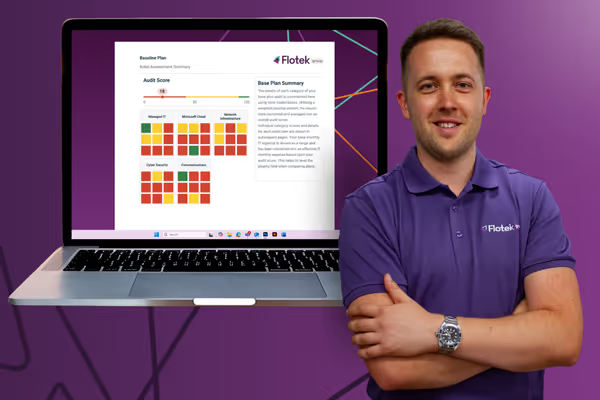
Schedule a Free IT Audit & Cost Breakdown

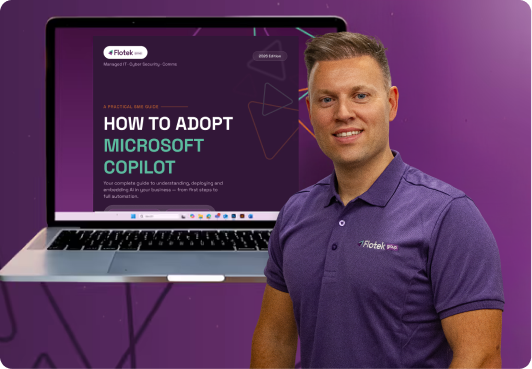
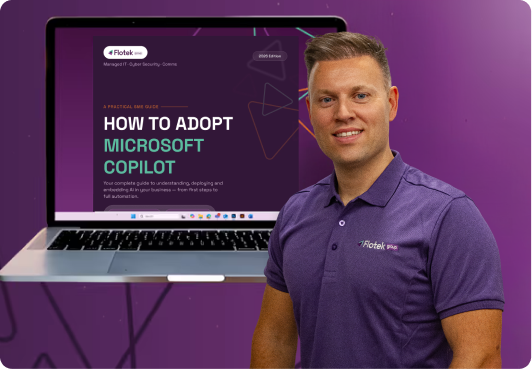
Download Your Free CopilotAdoption Guide
The Content Hub

%20(45).png)
%20(43).png)
%20(41).png)
%20(40).png)
%20(51).png)

Microsoft Ai & Copilot 365 Introductory Webinar



.avif)
.avif)
%20(1).avif)
.avif)